Your first meeting with Nexnote in under a minute.
Eight short sections covering recording, transcription, teams, sharing, and sync. Skim with the sidebar; deep-link any section.
Getting Started
Install from Google Play, tap Sign up, and use your work email. Nexnote works anonymously (2 hrs/mo) if you want to try it first — registering unlocks the Free plan with 5 hrs/mo.
- Install from Google Play
- Sign up with email or Google
- Grant microphone permission on first record
- Pick your preferred interface language
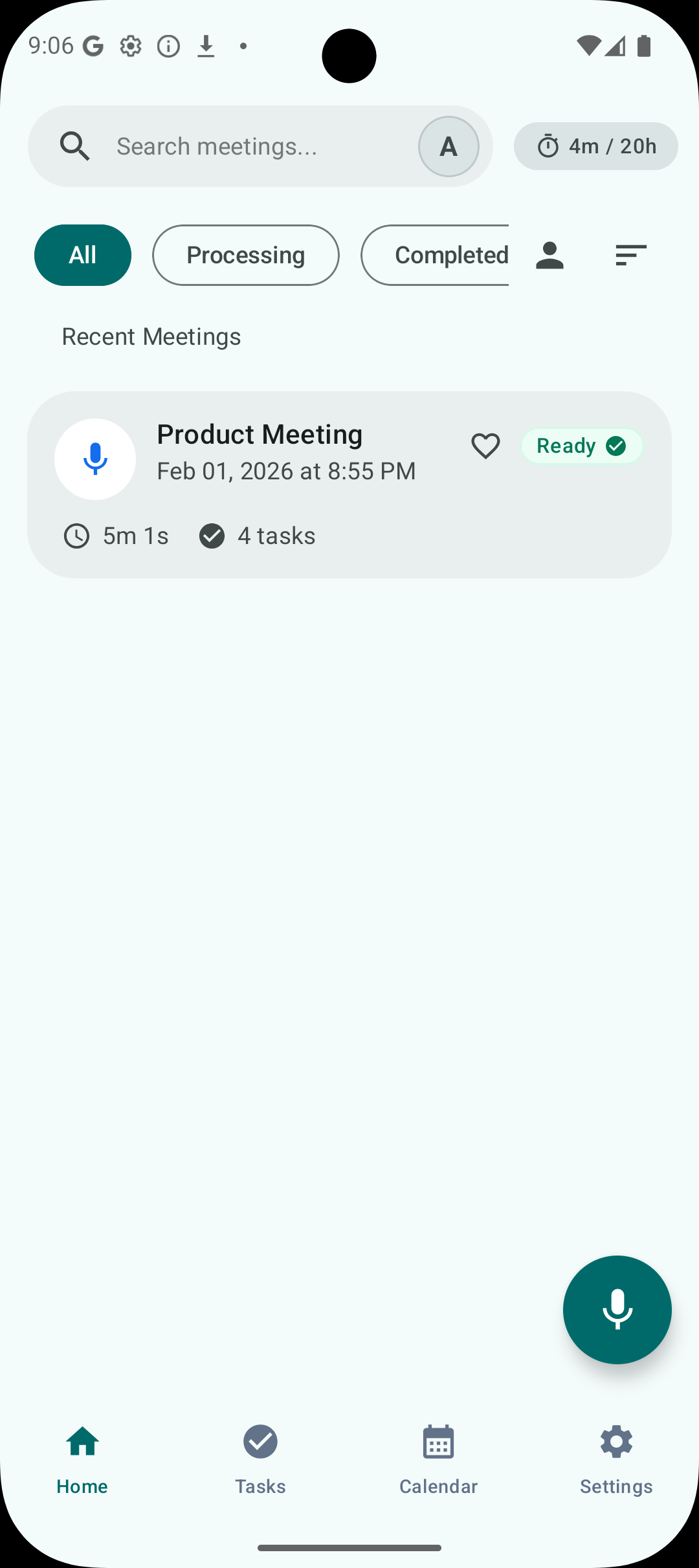
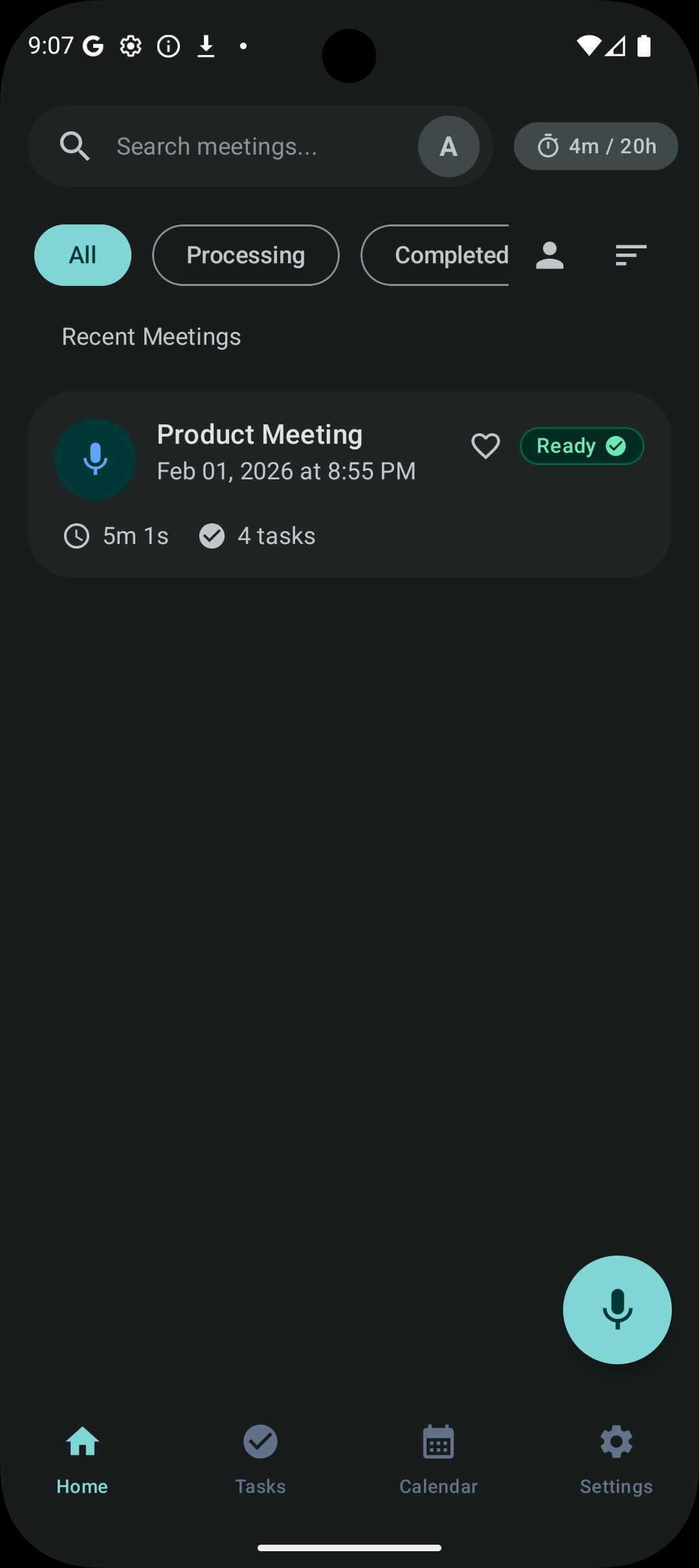
Recording a Meeting
From the home screen, tap the big mic. Nexnote keeps recording if you leave the app, check a calendar, or lose Wi-Fi. Leave the language on Auto unless you're recording a language the app hasn't detected yet.
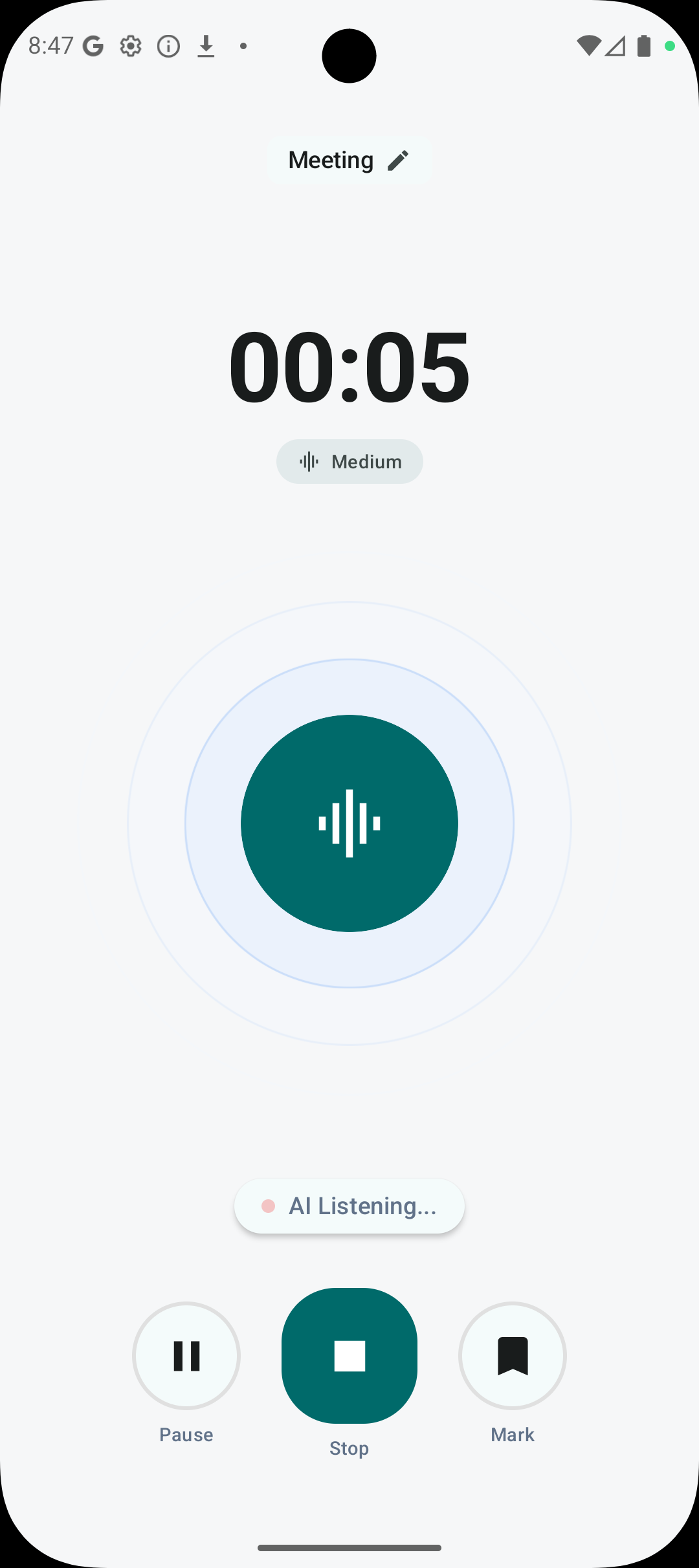
- Tap the mic from any screen
- Works in background across apps
- Offline-safe — uploads when you reconnect
- Tap the bottom-sheet to change language mid-recording
Transcription & AI Notes
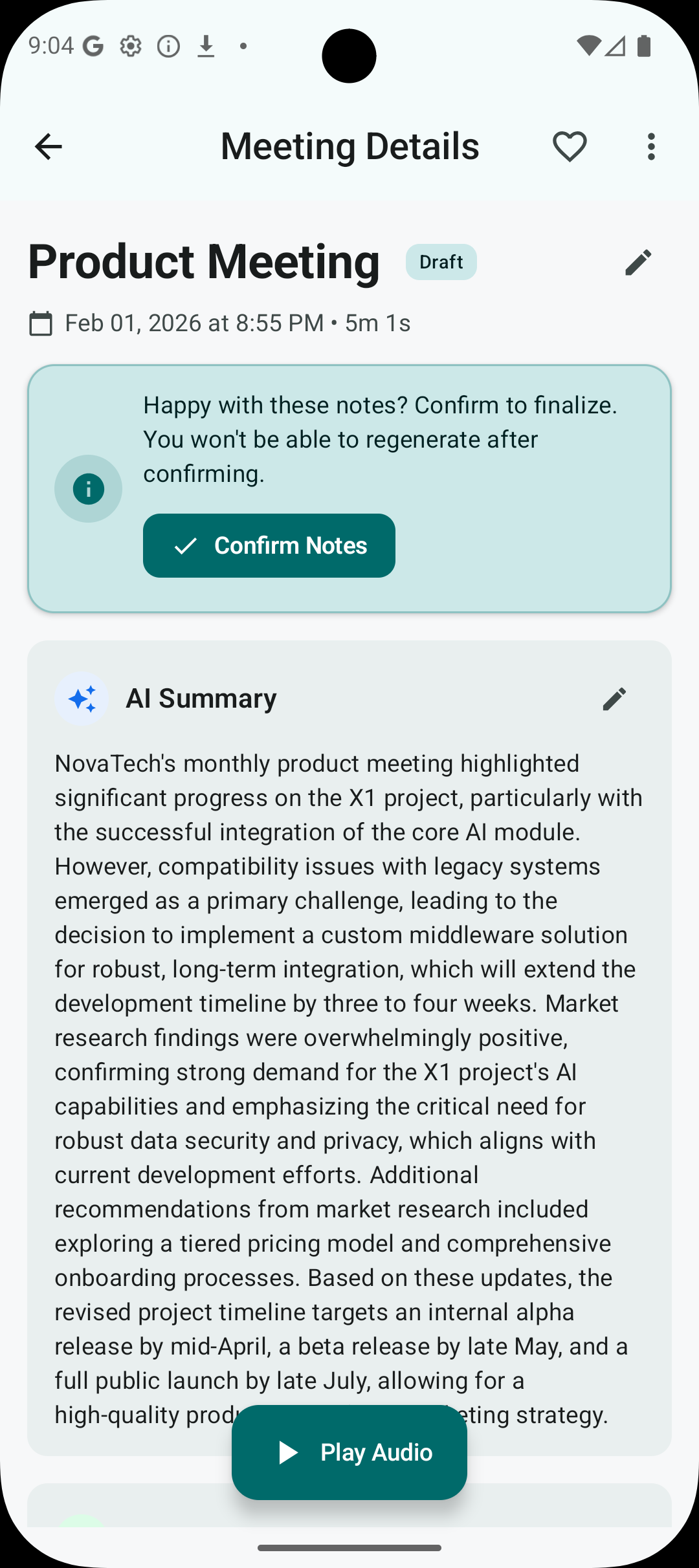
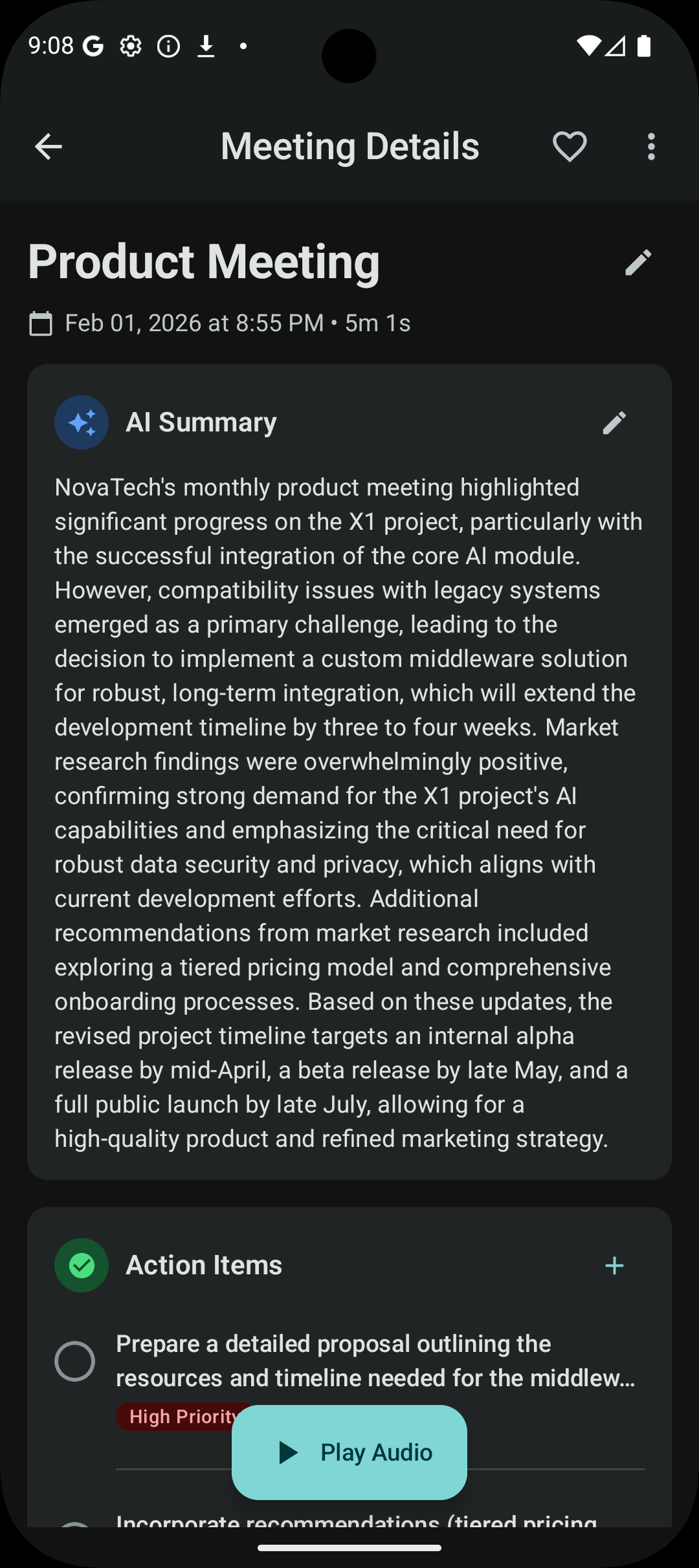
When you stop recording, Nexnote uploads the audio to Scribe, transcribes it, and hands the transcript to Gemini for a structured summary. You'll see a Draft badge while the summary is generating — a typical 30-minute meeting takes under a minute.
- Draft mode — preview and regenerate before confirming
- Confirm Notes locks the summary to save compute
- Switch between Brief / Standard / Detailed summaries
- Summary language matches the meeting language
Managing Meetings
Search, star, filter, and batch-edit meetings. Everything is local-first with cloud backup — you can work from multiple devices with the same account.
- Search by title, content, or participants
- Star important meetings for quick access
- Filter by date range or sort by duration
- Multi-select for bulk actions
Action Items
Every commitment becomes a task with an owner, due date, and priority. The cross-meeting dashboard (Pro) shows what's outstanding across every call this week.
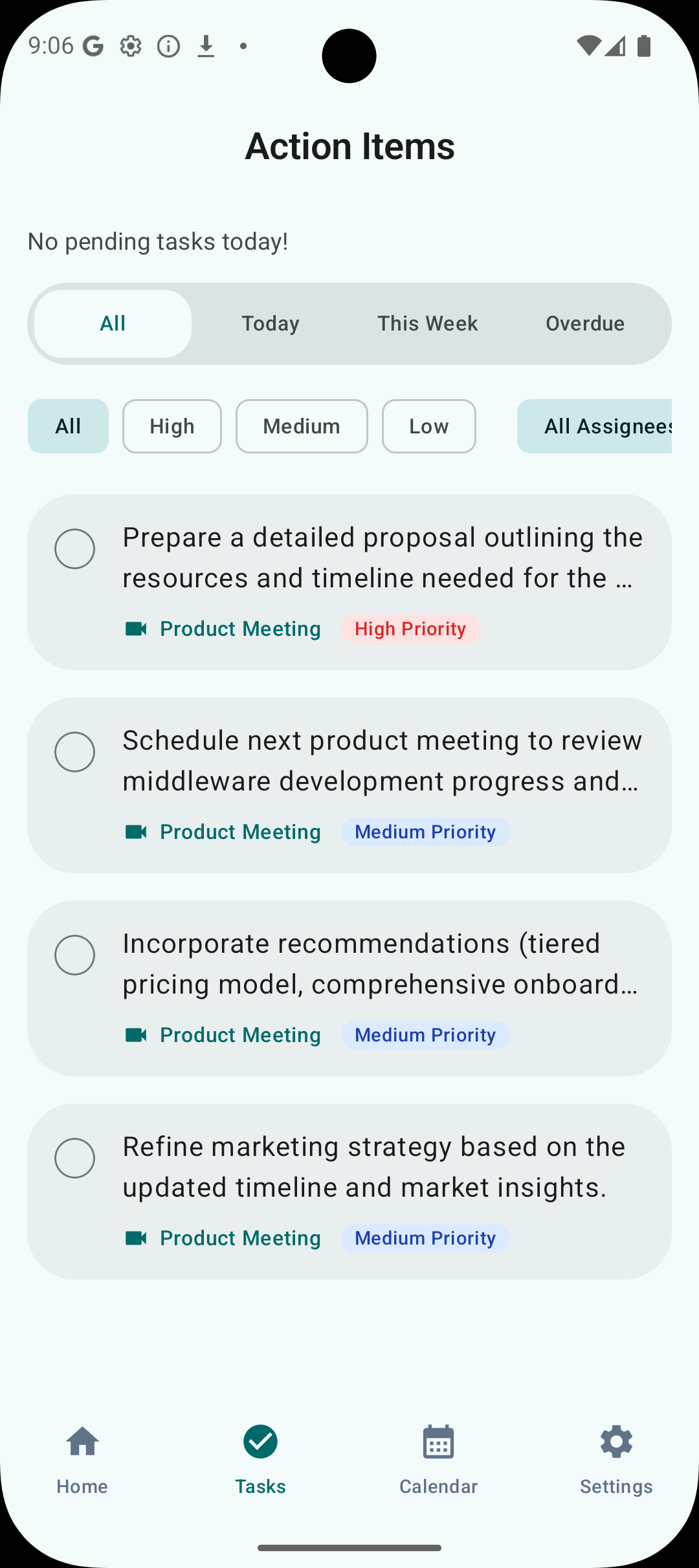
- Automatically extracted from transcripts
- Assignees, due dates, priorities
- Cross-meeting dashboard in Pro
- Mark complete, edit, or add manually
Sharing & Export
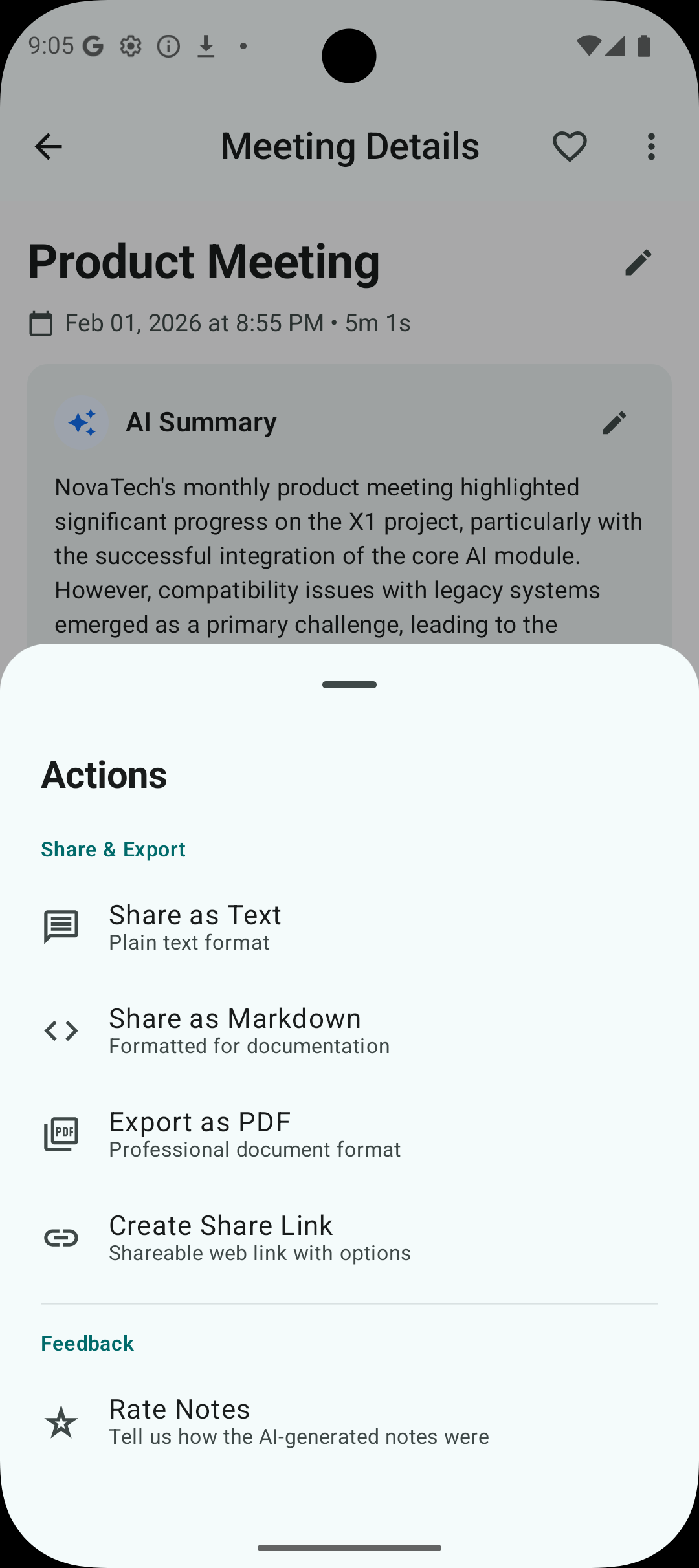
Share a meeting with a link — no account required for recipients. Password-protect sensitive notes (Pro). Export to PDF, Markdown, or JSON for integration.
- Share via secure link
- Password protection (Pro)
- PDF and Markdown export
- JSON export (Pro) for Notion, Linear, etc.
Cloud Sync
Cloud sync keeps meetings available across devices. Free 500 MB, Pro 5 GB, Business 20 GB. All data stored in EU/EEA.
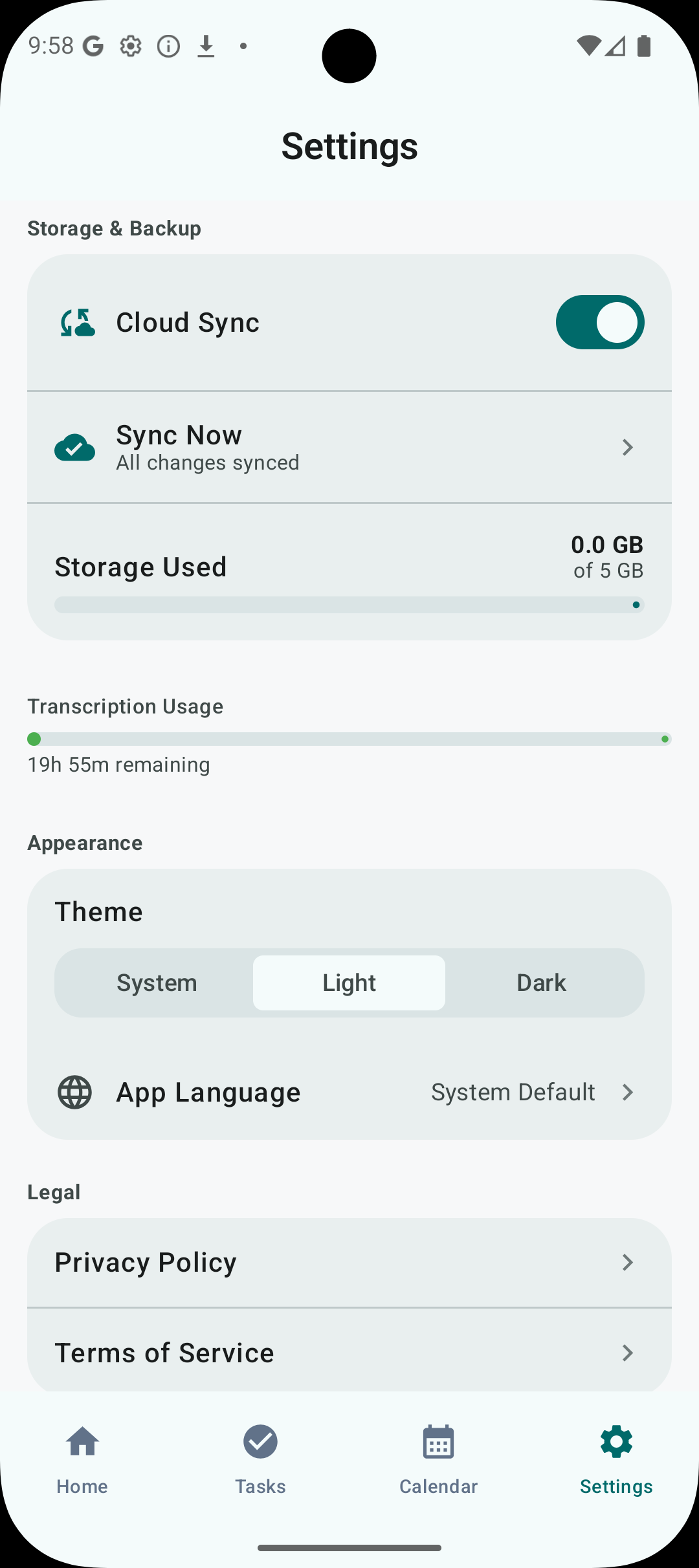
- Automatic background sync
- Record offline — syncs on reconnect
- Per-meeting sync control
- Stored in EU/EEA data centers
Settings
Fine-tune audio quality, theme, app and transcription languages, and analytics opt-in.
- Audio quality: standard or high
- Theme: light, dark, or system
- Interface language (separate from transcription)
- Default transcription language
- Analytics: opt in or out